
Help
Ways to sign in and passkeys
Sign in without a password: Google, a one-time link sent to your e-mail, or a passkey with your fingerprint, face or device PIN.
Steps
- 1
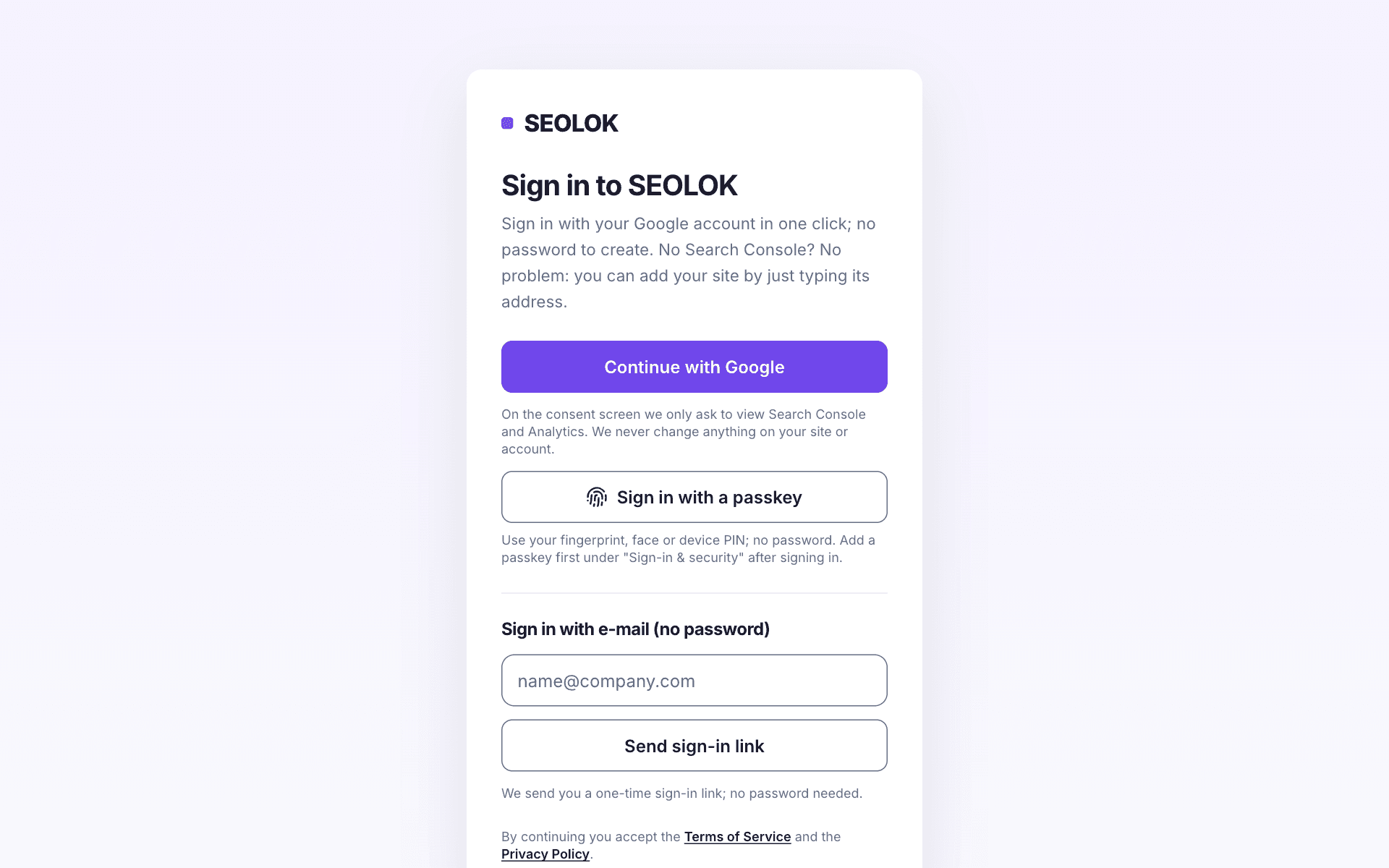
On the sign-in page click "Continue with Google"; you never need to create a separate SEOLOK password.
- 2
No Google account? Type your e-mail address and click "Send sign-in link". The link in your inbox works once and is valid for 15 minutes.
- 3
To add a passkey, sign in first, open My account → "Sign-in & security" in the menu and click "Add a passkey on this device". Your device asks for your fingerprint, face or device PIN.
- 4
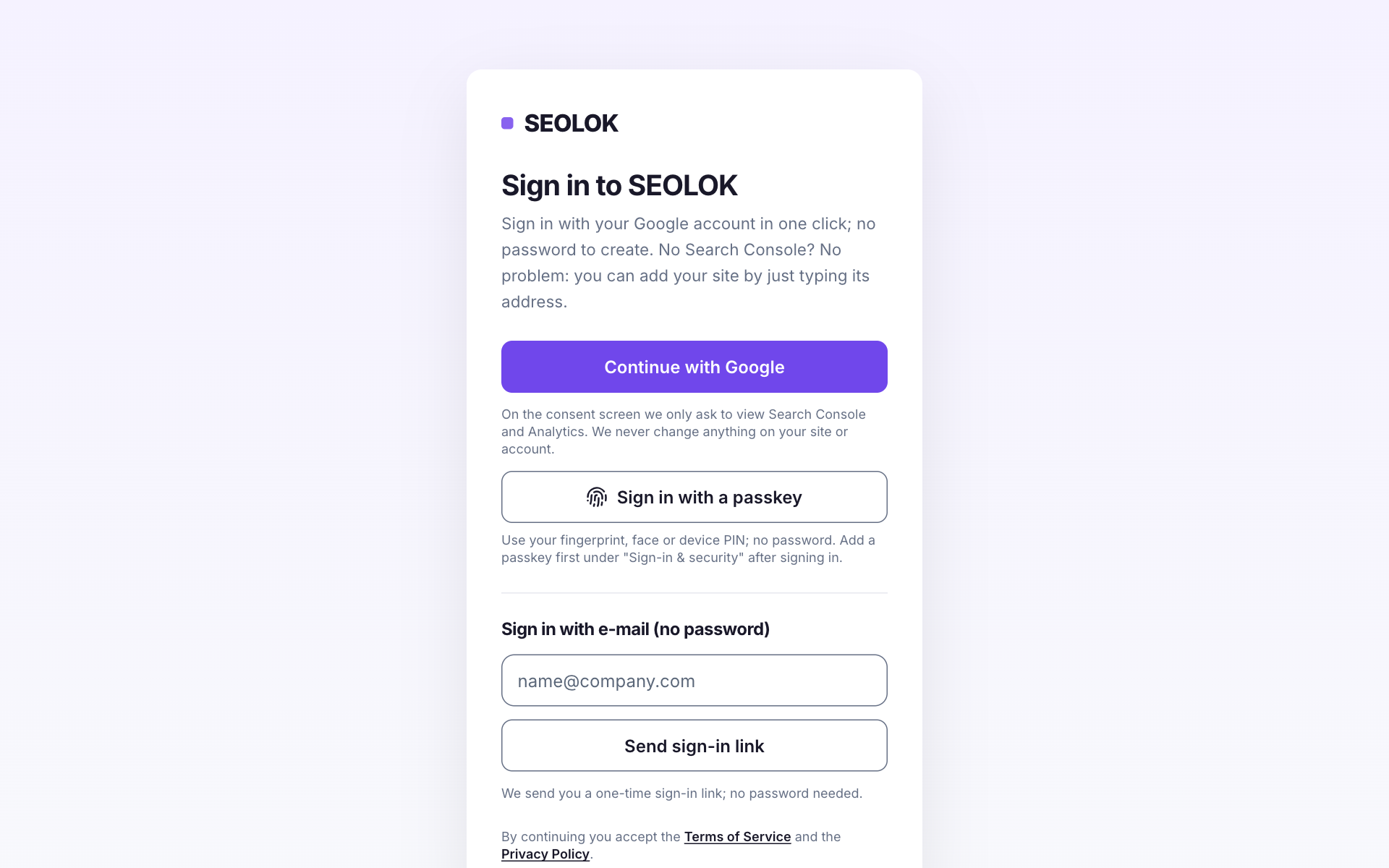
Next time, click "Sign in with a passkey" on the sign-in page and confirm on your device. You can add a separate passkey for each device (phone, computer) or your password manager, up to 10.
- 5
Lost a device or stopped using it? Click "Remove" next to that passkey on the "Sign-in & security" page.
Tip: The passkey stays on your device; we only store its public key and never receive your fingerprint or face data. Without a passkey you can always sign in with Google or e-mail.
Why it matters
SEOLOK has no passwords, so there is no forgotten, reused or leaked password to worry about. You sign in with Google in one click, with a link sent to your e-mail, or with your device's fingerprint, face recognition or PIN. All of these open the same account tied to your e-mail address, so if one does not work at the moment, you carry on with another.
If you get stuck
If the sign-in e-mail did not arrive, check the address and the spam folder. The link is valid for 15 minutes and works once; if it expired, ask for a new one. After clicking it you also need to press "Sign in" on the page that opens. Without approval on the Google consent screen, sign-in cannot finish. If a passkey fails, the device needs a SEOLOK passkey saved on it; otherwise use Google or e-mail.
Frequently asked questions
- I forgot my password. How do I reset it?
- There is no password to reset. On the sign-in page click "Continue with Google", or type your e-mail address and ask for a sign-in link. If you added a passkey you can use that too. Your account is tied to your e-mail address, so as long as you can reach that address you can always get in.
- If I sign in with Google and with e-mail, do I get two accounts?
- No. The account belongs to your e-mail address: with the same address, Google, an e-mail link and a passkey all lead to the same account. Signing in with a different address creates a separate account. When you accept a team invitation, you must also sign in with the address the invitation was sent to.
- What if I lose my phone or computer?
- Using a passkey requires unlocking the device. Still, we suggest signing in with Google or e-mail and removing that device's passkey on the Sign-in & security page with "Remove". Passkeys synced through a password manager travel between devices; those are marked "Synced across devices" on the page.
- What does the Google consent screen ask for, and do you change anything on my account?
- We only ask to view Search Console and Analytics; we never change anything on your site or Google account. You can withdraw the permission at any time from your Google account's permissions page, and once access is removed we stop pulling new data from Google.
Read next
- Getting started: add your siteSign in with Google and type your site address; we find your keywords and measure your Google position.
- Inviting a teammateYour agency or colleagues can see the same sites with their own Google accounts.
- Support and suggestionsReport a problem, ask a question or suggest a feature; get the answer by e-mail.
- Plans and paymentThe difference between Free, Tracker, Pro and Agency, VAT and auto-renewal.
Still stuck? Contact us